This section introduces the types of Lua scripts supported by EdgeTX and how they may be used.
EdgeTX LUA Reference Guide
This guide covers the development of user-written scripts for R/C transmitters running the EdgeTX operating system with Lua support. Readers should be familiar with EdgeTX, the EdgeTX Companion, and know how to transfer files the SD card in the transmitter.
The latest version of this guide will always be available here. At the top of the left sidebar there is a version option if you are running an older version of EdgeTX and need the docs for that specific version.
Sections
Chapter
Content
EdgeTX LUA development support
Quickest way to get support from seasoned EdgeTX LUA developers is to join our Discord server and ask on dedicated #lua channel
LUA Reference guide collaboration
Please feel free to make suggestions or corrections to the documentation.
Preferred method of editing is to use , as it uses WYSWIG editor allowing two-stage publication. If you want to change or add whole page or become collaborator <decribe what to do>.
Project support
The EdgeTX team has no intention of making a profit from their work - EdgeTX is free and open source and will remain free and open source. However, the project is more expensive to maintain than most open source projects. This in mainly because there is a never ending flood of hardware to integrate and maintain code for. Hardware that costs. In addition, in order to develop for this hardware, certain specalised test and measurement equipment is also required.
In order to support this, EdgeTX has chosen to use OpenCollective to allow for donations from the community, as well as funding from manufacturers who choose to partner with and sponsor the project. This also allows for transparent accounting of what the funds are spent on.
Please visit if you would like to financially help support the project!
Overview
This section covers various topics of LUA implementation in EdgeTX operating system system
Topic
Description
LUA Basics
Brief introduction to LUA language
LUA Version and included libraries
Dut to memory limits not all standard LUA libraries are included in EdgeTX embedded version of LUA interpreter & compiler.
Script Types
LUA version and included libraries
LUA Version
EdgeTX 2.10 uses LUA interpreter and compiler version 5.2
For detailed reference read Lua 5.2 Reference Manual
Included standard libraries
Lua Standard Libraries
Comment
Lua Basics
Lua is a small but powerful language. This section will explain a few of the most important concepts.
Introduction
Lua was chosen for EdgeTX, because it is a small language designed to be highly extensible by libraries written in C and C++, so it can be integrated into other systems like EdgeTX. It is also relatively efficient, both in terms of memory and CPU usage, and hence well suited for the radios.
In addition to the provided libraries, Lua has a very elegant mechanism for loading new Lua code modules during run-time. A lot of the elegance comes from the way that the loading mechanism meshes with another concept supported by Lua: first class functions with closures.
io Library
Standard LUA library has been simplified and only a subset of functions and their functionality is available.
Available functions:
io.open()
Function Scripts
Purpose
Function scripts are invoked via EdgeTX 'Lua Script' of Special Functions configuration page.
Typical uses of Function scripts are:
Telemetry Scripts
Purpose
Although they are named "Telemetry scripts" in fact they can be used to perform constant task while running in background. Telemetry scripts are mostly used for building customized screens that are avalilable to user directly from main screen using key shortcut. Each model can have up to three active scripts as configured on the model's Telemetry configuration page. The same script can be assigned to multiple models.
EdgeTX allows to use various LUA scripts for different purposes. Here you can check which one suits your needs.
Computer science pioneer Christopher Strachey introduced the concept of functions as first-class objects in his paper Fundamental Concepts in Programming Languages from 1967. What it means is that functions can be treated as other variables: as arguments passed in function calls, as results returned from function calls, and a function identifier can be re-assigned to another chunk of function code, just like a variable ca be assigned to a new value.
In Lua, a function declaration is really "syntactic sugar" for assigning a variable to the chunk of code that is called when the function is invoked, i.e.
local function f(x) return x + 1 end
is the same as
local f = function(x) return x + 1 end
You can even add functions to Lua tables, i.e.
t = { f = f }
will add the above function to the table t, as a field that is also called f. Does that look familiar to the return statement required at the end of a Lua script?
Yes indeed, because a script is really an anonymous function that returns a list of functions to the system. The function declarations assign variables to chunks of function code, these variables are added to the list returned at the end of the script, and the system then calls the functions periodically to run the script. So the script itself is run one time initially, and subsequently the functions returned by the last statement are called periodically.
Closures
Another important concept that goes with first-class functions, is closures. This is the environment of the function with the variable names that the function can see. Please consider the following function counter that returns another function:
The function is returned directly without being assigned to a variable name. The closure of the function returned is the body of the function counter, containing both the arguments start and step, and the local variable x. So if c1 = counter(1, 1) then c1() will return 1, 2, 3, ... when called repeatedly, and if c2 = counter(2, 3) then c2() will return 2, 5, 8, ...
Likewise, the local variables that you declare outside the functions of your script can be used by all of the functions in your script, and they persist between function calls, but they are not visible to other scripts.
The widget scripts are a little trickier, as you can register multiple instances of the same widget script, and all of these instances run within the same Lua closure. Therefore, local variables declared outside any functions in a widget script are shared among all of the instances of that script. But each call to the create(...) function returns a new widget list to the system. And since this list is unique to each instance, you can add private instance variables to it.
Functions with Variable Number of Arguments
Please consider this function:
It takes an argument x and a vararg list ... A vararg list is just like a list of arguments separated by commas, and you can call the function with any number of arguments greater than 1. Inside the function, you can also treat ... like a comma separated list of variables, e.g. in the above function, ... is converted to a table by {...} just like you could construct a table by e.g. {a, b, c}. The table is iterated with the ipairs function to look for an element matching the first argument x. So e.g. the following statement
if event == EVT_VIRTUAL_ENTER or event == EVT_VIRTUAL_EXIT then
can be replaced by
if match(event, EVT_VIRTUAL_ENTER, EVT_VIRTUAL_EXIT) then
You can also use ... directly as a comma separated list of values, e.g. local a, b, c = ... will assign the three variables to the three first arguments following x, or nil if none are given.
specialized handling in response to switch position changes
customized announcements
Execution & Lifetime
Function script is loded when model is selected.
Script executes until
it misbehaves (e.g. run-time error or low memory)
One-time Script is running. When One-time script finishes execution, Wigdet Script resumes execution.
Function scripts DO NOT HAVE ACCESS TO LCD DISPLAY
File Location
Function scripts are located on the SD card in the folder /SCRIPTS/FUNCTIONS/
File name length (without extension) must be 6 characters or less
Interface
Every Function script must include a return statement at the end, defining its interface to EdgeTX.
This statement returns a table with the following fields:
Field
Type
Required
Desctiption
run
function
This function is called periodicaly when switch assiociated the Special Function is ON.
Parametersnone
Return valuesnone
Field
Type
Required
Desctiption
init
function
This function is called once when Function script is loaded and executed for the first time
Parameters
none
Return Values
none
Field
Type
Required
Desctiption
background
function
This function is called periodicaly when switch assiociated the Special Function is OFF
Parameters
none
Return Values
none\
Example
local function counter(start, step)
local x = start
return function()
local y = x
x = x + step
return y
end
end
local function match(x, ...)
for i, y in ipairs({...}) do
if x == y then
return true
end
end
return false
end
-- this is a One-time script
local function run(event)
print("lua io.read test") -- print() statements are visible in Debug output window
local f = io.open("foo.bar", "r")
while true do
local data = io.read(f, 10) -- read up to 10 characters (newline char also counts!)
if #data == 0 then break end -- we get zero length string back when we reach end of the file
print("data: "..data)
end
io.close(f)
return 1
end
return { run=run }
-- this is a One-time script
local function run(event)
print("lua io.write test")
local f = io.open("foo.bar", "a") -- open file in append mode
io.write(f, "first line\r\nsecond line\r\n")
io.write(f, 4, "\r\n", 35.6778, "\r\n") -- one can write multiple items at the same time
local foo = -4.45
io.write(f, foo, "\r\n")
io.close(f)
return 1 -- this will end the script execution
end
return { run=run }
local function my_init()
-- Called once when the script is loaded
end
local function my_run()
-- Called periodically while the Special Function switch is on
end
local function my_background()
-- Called periodically while the Special Function switch is off
end
return { run = my_run, background = my_background, init = my_init }
Telemetry scripts are only available on radios with B&W LCD screens, such as e.g. FrSky Taranis models (including Xlite), Radiomaster TX12, Zorro, Boxer or Jumper T12.
Read more about <radios>.
Execution & Lifetime
Telemetry script is loaded and executed when model is selected.
Script executes until:
it misbehaves (e.g. run-time error or low memory)
One-time Script is running. When One-time script finishes execution, Wigdet Script resumes execution.
File Location
Telemetry scripts are located on the SD card in the folder /SCRIPTS/TELEMETRY/.
Telemetry script file name length (without extension) must be 6 characters or less
Interface
Every Telemetry script must include a return statement at the end, defining its interface to EdgeTX.
This statement returns a table with the following fields:
Field
Type
Required
Desctiption
run
function
Function is called periodicaly when when telemetry screen is visible.
Parameters
event
number
Used to indicates which radio key has been pressed (see )
Return valuesnone
Field
Type
Required
Desctiption
init
function
This function is called once when script is executed
Parameters
none
Return Values
none
Field
Type
Required
Desctiption
background
function
This function is called periodically, both when the telemetry screen is visible and when it is not
Parameters
none
Return Values
none
Examples
Widget Scripts
Purpose
Widget scripts are avaiable on radios equiped with color LCD. They are designed to run constantly in the background performinfg various task. Widget scripts are mostly used to extend EdgeTX functionality via Widgets that are places by user on Main Views. They are equivalent of Telemetry Scripts on radios equiped with B&W LCD.
Most of the time, widget scripts show some info in a Widget's zone in one of the user defined Main Views. They cannot receive direct input from the user via key events with exeption of being displayed in so called
local function my_init()
-- init is called once when model is loaded
end
local function my_background()
-- background is called periodically
end
local function my_run(event)
-- run is called periodically only when screen is visible
end
return { run = my_run, background = my_background, init = my_init }
Get the color for specific area : see lcd.setColor for area list
@status current Introduced in 2.3.11
Parameters
none
Return value
none
Notice
Only available on Colorlcd radios
popupWarning(title, event)
Raises a pop-up on screen that shows a warning
@status current Introduced in 2.2.0
Parameters
title (string) text to display
event (number) the event variable that is passed in from the Run function (key pressed)
Return value
"CANCEL" user pushed EXIT key
Notice
Use only from stand-alone and telemetry scripts.
popupInput(title, event, input, min, max)
Raises a pop-up on screen that allows uses input
@status current Introduced in 2.0.0
Parameters
title (string) text to display
event (number) the event variable that is passed in from the Run function (key pressed)
input (number) value that can be adjusted by the +/- keys
min (number) min value that input can reach (by pressing the - key)
max (number) max value that input can reach
Return value
number result of the input adjustment
"OK" user pushed ENT key
"CANCEL" user pushed EXIT key
Notice
Use only from stand-alone and telemetry scripts.
lcd.getLastPos()
Returns the rightmost x position from previous output
@status current Introduced in 2.0.0
Parameters
none
Return value
number (integer) x position
Notice
Only available on Taranis
For added clarity, it is recommended to use lcd.getLastRightPos()
FrSky
lcd.drawLine(x1, y1, x2, y2, pattern, flags)
Draw a straight line on LCD
@status current Introduced in 2.0.0, flags introduced in 2.3.6
Parameters
x1,y1 (positive numbers) starting coordinate
x2,y2 (positive numbers) end coordinate
pattern SOLID or DOTTED
flags lcdflags
Return value
none
Notice
If the start or the end of the line is outside the LCD dimensions, then the whole line will not be drawn (starting from OpenTX 2.1.5)
LUA API Reference
This section describes the Lua libraries, functions and constants that are provided by EdgeTX.
Key Event Constants
Jumper
lcd.getLastLeftPos()
Returns the leftmost x position from previous drawtext or drawNumber output
@status current Introduced in 2.2.0
Parameters
none
Return value
number (integer) x position
Notice
Only available on Taranis
Internal indexes
GREY()
Returns gray value which can be used in LCD functions
@status current Introduced in 2.0.13
Parameters
none
Return value
(number) a value that represents amount of greyness (from 0 to 15)
Notice
Only available on Taranis
Special Function Constants
These constants determine the type of a Special Function
FUNC_OVERRIDE_CHANNEL
FUNC_TRAINER
FUNC_INSTANT_TRIM
FUNC_RESET
FUNC_SET_TIMER
FUNC_ADJUST_GVAR
FUNC_VOLUME
FUNC_SET_FAILSAFE
FUNC_RANGECHECK
FUNC_BIND
FUNC_PLAY_SOUND
FUNC_PLAY_TRACK
FUNC_PLAY_VALUE
FUNC_PLAY_SCRIPT
FUNC_RESERVE5
FUNC_BACKGND_MUSIC
FUNC_BACKGND_MUSIC_PAUSE
FUNC_VARIO
FUNC_HAPTIC
FUNC_LOGS
FUNC_BACKLIGHT
FUNC_SCREENSHOT
FUNC_RACING_MODE
FUNC_DISABLE_TOUCH
lcd.drawFilledRectangle(x, y, w, h [, flags])
Draw a solid rectangle from top left corner (x,y) of specified width and height
@status current Introduced in 2.0.0
Parameters
x,y (positive numbers) top left corner position
w (number) width in pixels
h (number) height in pixels
flags (unsigned number) drawing flags
Return value
none
Display LCD
lcd.drawSource(x, y, source [, flags])
Displays the name of the corresponding input as defined by the source at (x,y)
@status current Introduced in 2.0.0
Parameters
x,y (positive numbers) starting coordinate
source (number) source index
flags (unsigned number) drawing flags
Return value
none
lcd.refresh()
Refresh the LCD screen
@status current Introduced in 2.2.0
Parameters
none
Return value
none
Notice
This function only works in stand-alone and telemetry scripts.
lcd.getLastRightPos()
Returns the rightest x position from previous drawtext or drawNumber output
@status current Introduced in 2.2.0
Parameters
none
Return value
number (integer) x position
Notice
Only available on Taranis
This is strictly equivalent to former lcd.getLastPos()
Screen Constants
Name
Description
LCD_W
width in pixels
LCD_H
height in pixels
lcd.invertRect(x, y, w, h [, flags])
Invert a rectangle zone from top left corner (x,y) of specified width and height
@status current Introduced in 2.8.0
Parameters
x,y (positive numbers) top left corner position
w (number) width in pixels
h (number) height in pixels
flags (optional) please see Lcd functions overview
Return value
none
lcd.drawRectangle(x, y, w, h [, flags [, t]])
Draw a rectangle from top left corner (x,y) of specified width and height
@status current Introduced in 2.0.0, changed in 2.2.0
Parameters
x,y (positive numbers) top left corner position
w (number) width in pixels
h (number) height in pixels
flags (unsigned number) drawing flags
t (number) thickness in pixels, defaults to 1 (only on Horus)
Return value
none
lcd.drawBitmapPatternPie(bitmap, x, y, startAngle, endAngle [, flags])
Displays a bitmap pattern pie at (x,y)
@status current Introduced in 2.8.0
Parameters
bitmap (pointer) point to a bitmap previously opened with Bitmap.open()
x,y (positive numbers) starting coordinates
startAngle Start angle
endAngle End angle
flags (optional) please see Lcd functions overview
Return value
none
Notice
Only available on Horus
popupConfirmation(title, message, event)
Raises a pop-up on screen that asks for confirmation
@status current Introduced in 2.2.0, changed from (title, event) to (title, message, event) in 2.3.8
Parameters
title (string) title to display
message (string) text to display
event (number) the event variable that is passed in from the Run function (key pressed)
Return value
"CANCEL" user pushed EXIT key
Notice
Use only from stand-alone and telemetry scripts.
lcd.exitFullScreen()
Exit full screen widget mode.
@status current Introduced in 2.5.0
Notice
Only available on radios with color display
Switch Positions List
lcd.resetBacklightTimeout()
Reset the backlight timeout
@status current Introduced in 2.3.6
Parameters
none
Return value
none
BetaFPV
lcd.drawBitmapPattern(bitmap, x, y [, flags])
Displays a bitmap pattern at (x,y)
@status current Introduced in 2.8.0
Parameters
bitmap (pointer) point to a bitmap previously opened with Bitmap.open()
x,y (positive numbers) starting coordinates
flags (optional) please see Lcd functions overview
Return value
none
Notice
Only available on Horus
lcd.drawPoint(x, y)
Draw a single pixel at (x,y) position
@status current Introduced in 2.0.0
Parameters
x (positive number) x position
y (positive number) y position
flags (optional) lcdflags
Return value
none
Notice
Taranis has an LCD display width of 212 pixels and height of 64 pixels. Position (0,0) is at top left. Y axis is negative, top line is 0, bottom line is 63. Drawing on an existing black pixel produces white pixel (TODO check this!)
lcd.drawTimer(x, y, value [, flags])
Display a value formatted as time at (x,y)
@status current Introduced in 2.0.0, SHADOWED introduced in 2.2.1
Parameters
x,y (positive numbers) starting coordinate
value (number) time in seconds
flags (unsigned number) drawing flags:
0 or not specified normal representation (minutes and seconds)
TIMEHOUR display hours
other general LCD flag also apply
SHADOWED Horus only, apply a shadow effect
Return value
none
lcd.drawCombobox(x, y, w, list, idx [, flags])
Draw a combo box
@status current Introduced in 2.0.0
Parameters
x,y (positive numbers) top left corner position
w (number) width of combo box in pixels
list (table) combo box elements, each element is a string
idx (integer) index of entry to highlight
flags (unsigned number) drawing flags, the flags can not be combined:
BLINK combo box is expanded
INVERS combo box collapsed, text inversed
0 or not present combo box collapsed, text normal
Return value
none
Notice
Only available on Taranis
FlySky
lcd.drawGauge(x, y, w, h, fill, maxfill [, flags])
Draw a simple gauge that is filled based upon fill value
@status current Introduced in 2.0.0, changed in 2.2.0
Parameters
x,y (positive numbers) top left corner position
w (number) width in pixels
h (number) height in pixels
fill (number) amount of fill to apply
maxfill (number) total value of fill
flags (unsigned number) drawing flags
Return value
none
Radiomaster
lcd.drawSwitch(x, y, switch, flags)
Draw a text representation of switch at (x,y)
@status current Introduced in 2.0.0
Parameters
x,y (positive numbers) starting coordinate
switch (number) number of switch to display, negative number displays negated switch
flags (unsigned number) drawing flags, only SMLSIZE, BLINK and INVERS.
Return value
none
Full Screen mode
. Full screen mode can be entered by selecting the widget, pressing ENTER and selecting
Full screen
from the widget's contextual menu,
or by double tapping the widget on radios with a touch screen
. Full screen mode can be exited by long pressing the EXIT (RTN) button, or by calling the Lua function
lcd.exitFullScreen()
.
Each model can have up to nine Main Views, with up to 8 widgets per screen, depending on their size and layout. Each instance of a widget has his own options table.
Widget scripts are only available on radios with color LCD screens, such as e.g. FrSky X10 or X12, Radiomaster TX16S, Jumper T16 or T18, Flysky NV14., etc.
Read more about radios.
Execution & Lifetime
All widget scripts on the SD card are loaded into memory when the model is selected, even widgets that are not used. This has the side effect that any global functions defined in a widget script will always be available to other widget scripts. It also means that any Widget Script placed in proper location on the SD card will consume part of the radio's memory - even if it is not being used.
It is important to either keep Widget Scripts small, or to use Lua's loadScript() function to load code dynamically
Script executes until:
it misbehaves (e.g. too long runtime, run-time error, or low memory)
One-Time script is running. When One-time script finishes execution, Wigdet Script resumes execution.
File Location
Widget scripts are located on the SD card, each one in their specific folder:
/WIDGETS/<folder name>/
Widget script folder name length must be 8 characters or less
Widget script name is constant and has to be named main.lua
Example of proper Widget script placement to be registered by EdgeTX as valid Widget script available to user in Widgets selection menu:
/WIDGETS/MYWGT/main.lua
Try to use unique folder name. In case of naming clash, previously installed widget will be overwritten.
Interface
Every Widget Script must include a return statement at the end, defining its interface to EdgeTX. This statement returns a table with the following fields:
Field
Type
Required
Desctiption
name
string
This variable holds a name that is displayed to user as Widget scripts name in available Widgets list.
The name length must be 10 characters or less.
Field
Type
Required
Desctiption
options
table
Options table is to store Widget's options available to EdgeTX user via Widget's Settings menu.
To see valid options read .
options table is passed to create function when invoked and then stored in Lua. Changing options table values while Widget script is running has no effect. This table is designed to be changed with EdgeTX system menus.
If options is changed by the user in the Widget Settings menu, then update will be called with a new options table, unaffected by any changes made by Lua code to the old options table.
Field
Type
Required
Desctiption
create
function
function is called once when the widget instance is registered (started).
Parameters
zone
table
This parameter will hold visible dimensions of Widget (height & width)
options
table
Initial options table as described above
Return values
widget
table
Create function will return table that has to be later passed to update , background & refresh functions allowing to access widget's unique variables
The size of the widget's zone area is as follows:
Full screen mode: LCD_W by LCD_H
Not full screen mode: zone.w by zone.h (updated if screen options are changed)
If local variables are declared outside functions in the widget script, then they are shared between all instances of the widget. Therefore, local variables that are private for each instance should be added to the widget table in the create function before returning the widget table to EdgeTX.
Field
Type
Required
Desctiption
update
function
This function is called when Widget's Settings are changed by the user. It is mostly used to modify Widget Script variables or behaviour basing on options values entered by user.
Parameters
widget
table
Widget's table returned by create function, decribed above.
options
table
Initial options table as described above
Return valuesnone
Field
Type
Required
Desctiption
background
function
This function is called periodically when the widget instance is NOT VISIBLE.
Parameters
widget
table
Widget's table returned by create function, decribed above.
Return valuesnone
Field
Type
Required
Desctiption
refresh
function
This function is called periodically when the widget instance IS VISIBLE.
Parameters
widget
table
Widget's table returned by create function, decribed above.
event
number
When Widget Script is in full screen mode, then event is either 0, a , or a .
When the widget is not in full screen mode, then event is nil
See .
touchState
table
This parameter is only present when radio is equiped with touch interface and event is a touch event.
If event is a , then touchState is a table. Otherwise, it is nil.
When the widget is not in full screen mode then
Return valuesnone
if you want background function to run when the widget is visible, then call it from refresh function.
Examples
One-Time Scripts
Purpose
One-time scripts are used mainly to perform tasks that are not connected with flying. In example ELRS configuration LUA script. They do their task and are then terminated (by user or function) and unloaded.
Execution & Lifetime
Script is executed when user selects "Execute" on a script file from SD card browser screen, or opens a Lua Tool, or creates a new model with a Wizard script.
The script executes until:
it returns value different from 0 (except returning string that contains new script name to be executed)
is forcefully closed by user by long press of EXIT key
is forcefully closed by system if it misbehaves (e.g. run-time error or low
memory)
Running a One-Time script will suspend execution of all other currently loaded Lua scripts (Custom, Telemetry, and Functions). They are automatically restarted once the One-Time script is finished. This is done to provide enough system resources to execute the One-Time script.
File Location
One-Time Scripts can be placed anywhere on SD card, however, the folder /SCRIPTS/ is recommended.
If One-Time Script is placed in a special folder /SCRIPTS/TOOLS, it will be visible under EdgeTX SYSTEM>TOOLS tab
To give this One-Time Script a unique name, place at the beginning of a Lua script the following line:
-- toolName = TNS|ScriptName|TNE
Otherwise script's filename will be used to display in SYSTEM>TOOLS list.
Wizard scripts must be stored in the same subfolder of /TEMPLATES/ with the same "first name" as the template file using it. Some Wizard scripts are just small scripts that load one of the common scripts located in /SCRIPTS/WIZARD/.
Interface
Every script must include a return statement at the end, defining its interface to EdgeTX. This statement returns a table with the following fields:
Field
Type
Required
Desctiption
Parameters
Return values
Field
Type
Required
Desctiption
Parameters
none
Return Values
none
Examples
Simplest one-time LUA script
Because the script return 0, this script will continue to run until the user long presses the EXIT (RTN) key.
An example of a One-Time LUA script, where the user can short press and release the EXIT (RTN) key to end/exit the script:
LVGL for Lua
The API for adding and using LVGL widgets in Lua scripts.
API Status
Avail
Status
Comment
Change log
EdgeTX version
Change
Constants
This section describes various constants that are provided for Lua by EdgeTX.
x1,y1,x2,y2,x3,y3 (positive numbers) coordinates of the three vertices
Overview
EdgeTX widgets and One-Time scipts can make use of LVGL controls and objects to create the script user interface. In addition to providing much better performance, this gives Lua scripts the same styles applied to firmware LVGL pages and controls.
The LVGL API can be used to add varios objects such as labels, rectangles, circles, buttons, toggle switches, sliders and more. Objects can be grouped, e.g. a rectangle can contain child labels or any other object. Objects can be moved, resized and updated as needed.
Many object properties can be set dynamically through functions in the Lua script - whenever the function returns a new value the objects property is automaticall changed. This removes the need for manually re-drawing the user interface.
x1,y1,x2,y2,x3,y3 (positive numbers) coordinates of the three vertices
lcd.drawText(x, y, text [, flags])
Draw a text beginning at (x,y)
@status current Introduced in 2.0.0, SHADOWED introduced in 2.2.1
Parameters
Special Character Constants
The radio's special characters can be used with the following text constants.
CHAR_RIGHT
CHAR_LEFT
CHAR_UP
local name = "WidgetName"
-- Create a table with default options
-- Options can be changed by the user from the Widget Settings menu
-- Notice that each line is a table inside { }
local options = {
{ "Source", SOURCE, 1 },
-- BOOL is actually not a boolean, but toggles between 0 and 1
{ "Boolean", BOOL, 1 },
{ "Value", VALUE, 1, 0, 10},
{ "Color", COLOR, ORANGE },
{ "Text", STRING, "Max8chrs" }
}
local function create(zone, options)
-- Runs one time when the widget instance is registered
-- Store zone and options in the widget table for later use
local widget = {
zone = zone,
options = options
}
-- Add local variables to the widget table,
-- unless you want to share with other instances!
widget.someVariable = 3
-- Return widget table to EdgeTX
return widget
end
local function update(widget, options)
-- Runs if options are changed from the Widget Settings menu
widget.options = options
end
local function background(widget)
-- Runs periodically only when widget instance is not visible
end
local function refresh(widget, event, touchState)
-- Runs periodically only when widget instance is visible
-- If full screen, then event is 0 or event value, otherwise nil
end
return {
name = name,
options = options,
create = create,
update = update,
refresh = refresh,
background = background
}
r (positive number) radius
start,end (positive numbers) start and end of the arc
flags (optional) please see flags and color constants
Return value
none
Available on
API status
EdgeTX version
Action
2.4.0
Introduced
r1,r2 (positive numbers) radii of the inside and outside of the annulus
start,end (positive numbers) start and end of the annulus
flags (optional) please see flags and color constants
Return value
none
Available on
API status
EdgeTX version
Action
2.4.0
Introduced
r (number) radius in pixels
flags (optional) please see flags and color constants
Return value
none
Available on
API status
EdgeTX version
Action
2.4.0
Introduced
r (number) radius in pixels
flags (optional) please see flags and color constants
Return value
none
Available on
API status
EdgeTX version
Action
2.4.0
Introduced
xmin,xmax,ymin,ymax (positive numbers) the limits of the rectangle
flags (optional) please see flags and color constants
Return value
none
Available on
API status
EdgeTX version
Action
2.4.0
Introduced
page (number) page number
pages (number) total number of pages. Only used as indicator on the right side of title bar. (i.e. idx=2, cnt=5, display 2/5)
Return value
none
Available on
API status
EdgeTX version
Action
2.0.0
Introduced
flags (optional) please see flags and color constants
Return value
none
Available on
API status
EdgeTX version
Action
2.4.0
Introduced
flags (optional) please see flags and color constants
Return value
none
Available on
API status
EdgeTX version
Action
2.4.0
Introduced
x,y (positive numbers) starting coordinate
text (string) text to display
flags (unsigned number) drawing flags. All values can be combined together using the + character. ie BLINK + DBLSIZE. See the Appendix for available characters in each font set.
area (unsigned number) specific screen area in the list bellow
CUSTOM_COLOR
DEFAULT_COLOR
DEFAULT_BGCOLOR
FOCUS_COLOR
FOCUS_BGCOLOR
LINE_COLOR
CHECKBOX_COLOR
MENU_BGCOLOR
MENU_COLOR
MENU_TITLE_DISABLE_COLOR
HEADER_COLOR
ALARM_COLOR
HIGHLIGHT_COLOR
TEXT_DISABLE_COLOR
HEADER_COLOR
DISABLE_COLOR
CURVE_CURSOR_COLOR
TITLE_BGCOLOR
TRIM_BGCOLOR
TRIM_SHADOW_COLOR
MAINVIEW_PANES_COLOR
MAINVIEW_GRAPHICS_COLOR
MENU_BGCOLOR
HEADER_ICON_BGCOLOR
HEADER_CURRENT_BGCOLOR
MAINVIEW_PANES_COLOR
MAINVIEW_GRAPHICS_COLOR
OVERLAY_COLOR
BARGRAPH1_COLOR
BARGRAPH2_COLOR
BARGRAPH_BGCOLOR
CUSTOM_COLOR
color (number) color in 5/6/5 rgb format. The following prefined colors are available
WHITE
GREY
LIGHTGREY
DARKGREY
BLACK
YELLOW
BLUE
RED
DARKRED
Return value
none
Notice
Only available on Colorlcd radios
LCD type
color TFT or IPS
LCD size
480x320
LCD color depth
16 bit - RGB565
Internal module
Multi-module, ELRS
External Module Bay
Yes (JR micro)
LUA data
getVersion() name
tx16s
LCD_W
480
LCD_H
320
memory for LUA
1MB
Inputs overview
Name
TX16S
MCU
STM32F7
run
function
Function is called periodicaly when script is running.
event
number
Used to indicate which radio key has been pressed (see Key Events)
touchState
table
This parameter is only present when radio is equiped with touch interface and event is a touch event (see Touch State Events).
exit
multi type
if exit value is 0 (zero) script will continue to run
if exit value is non-zero script will be halted.
If exit value is a text string with the file path to a new Lua script, then the new script will be loaded and run.
init
function
This function is called once when script is executed
Purpose
Mixes Scripts take one or more values as inputs, do some processing in Lua code, and output one or more values. Each model can have several Mixes Scripts associated with it, and these scripts are run periodically. They behave similarly to standard EdgeTX mixers, but at the same time they provide a much more flexible and powerful tool.
Typical use cases:
replacement for complex mixes that are not critical to model function
complex processing of inputs and reaction to their current state and/or their history
filtering of telemetry values
Execution & Lifetime
Mixes script is loded when model is selected.
Script executes until
it misbehaves (e.g. run-time error or low memory)
One-time Script is running. When One-time script finishes execution, Wigdet Script resumes execution.
Limitations
cannot update LCD screen or perform user input.
should not exceed allowed run-time/ number of instructions.
custom scripts are run with less priority than built-in mixes. Their execution period is around 30ms and is not guaranteed!
If the script output is used as a mixer source , and the script is killed for whatever reason, then thewhole mixer line is disabled!
Mixes Scripts should be as short as possible, to avoid delays. It is also important to keep in mind that other loaded Telemetry and Function scripts can add to the response time, or worse: hang the system!
To enable Mixes Scripts, firmware must be compiled with the option LUA_MIXER=Y.
File Location
Mixes scripts are located on SD card in folder /SCRIPTS/MIXES/
File name length (without extension) must be 6 characters or less
Interface
Every Mixes Script must include a return statement at the end, defining its interface to EdgeTX. This statement returns a table with the following fields:
table item
type
required
run
function
yes
This function is called periodicaly when script is running.
Parameters
Variables matching those used in input table
Return values
Variables matching those used in output table\
table item
type
required
init
function
no
This function is called once when Mixes Script is loaded and executed for the first time
Parameters
none
Return values
none\
table item
type
required
input
table
yes
The input table defines what values are available as input(s) to custom scripts.
There are two forms of input table entries
SOURCE
SOURCE inputs provide the current value of a selected OpenTX variable. The source must be selected by the user when the script is configured. Source can be any value that EdgeTX knows about (inputs, channels, telemetry values, switches, custom functions etc.).
Note: the typical input range is -1024 thru +1024. Simply divide the input value by 10.24 to convert to a percentage from -100% to +100%.
VALUE
VALUE inputs provide a constant value that is set by the user when the script is configured.
name - maximum length of 8 characters
min - minimum value of -128
max - maximum value of 127
default - must be within the valid range specified
Maximum of 6 inputs per script
table item
type
required
output
table
yes
The output table defines only name(s), as the actual values are returned by the script's run function.
Above names are only visible as source values on the radio screen when the script is running. If the model is edited in Companion, then the values show as LUA1a and LUA1b etc.
Examples
Example of <decribe what it does>.
Example where Lua mix script is used to drive ailerons in some clever way, but control falls back to the standard aileron mix if script is killed. Second mixer line replaces the first one when the script is alive:
Limitations:
Direct drawing via the 'lcd' API is not available for scripts using LVGL to create the UI.
Activating the LVGL API
A script that wants to use LVGL to create the UI must return 'useLvgl = true' in the table returned by the script:
Once activated a new 'lvgl' object will be available to use in the script. This is the primary interface to the LVGL API.
Scripts should check that 'lvgl' is not nil before use. If the 'lvgl' object is nil it is most likely the script is running on an earlier version of EdgeTX (prior to 2.11), or you forgot to set 'useLvgl = true'. Scripts should either display an error or fall back to using the lcd API in LVGL is not available.
Usage patterns
One-Time scripts
One-Time scripts have only two functions. Prior to the LVGL API, the 'init' function would be used to set up the initial state for the script and the 'run' function would re-draw the UI whenever called as well as process key and touch events.
With the LVGL API, the 'init' function should still set up the initial state for the script; but should also create the UI from LVGL objects. The 'run' function may handle key and touch events; but in most cases the LVGL objects themselves will do the heavy lifting. When set up correctly the LVGL UI will be automatically updated as the local state is changed, and the script will be automatically updated as the user interacts with the LVGL objects.
Widget scripts
Widget scripts using LVGL should create their UI in the 'update' function using the widget size to determine what elements to create and how to lay them out.
The 'background' and 'run' functions should just update essential state changes that are not being managed directly by the LVGL objects.
Controls and focus
Controls such as 'button', 'toggle', 'textEdit', etc will automatically display a focus outline around the control when it has input focus. This outline is 2 pixels wide so enough space must be left between and around controls to display the outline.
local function my_run(event, touchState)
print("Script run executed")
return 0
end
return { run = my_run }
local exit = 0
local function my_run(event, touchState)
print("Script my_run function executed")
-- code to execute
if event == EVT_VIRTUAL_EXIT then
print("Script exit executed")
exit = 1
end
return exit
end
local function my_init()
print("Script my_init function executed")
-- code to execute
end
return { run = my_run, init = my_init }
{ "<name>", SOURCE }
{ "<name>", VALUE, <min>, <max>, <default> }
{ "<name1>", "<name2>" }
local my_input =
{
{ "Strength", SOURCE}, -- user selects source (typically slider or knob)
{ "Interval", VALUE, 0, 100, 0 } -- interval value, default = 0.
}
local my_output = { "Val1", "Val2" }
local function my_init()
-- Called once when the script is loaded
end
local function my_run(Strength, Interval) -- Must match input table
local v1, v2
-- Called periodically
return v1, v2 -- Must match output table
end
return { input = my_input, output = my_output, run = my_run, init = my_init }
CH1 [I4]Ail Weight(+100%)
:= LUA4b Weight(+100%)
return {init = init, run = run, useLvgl=true}
The function has no parameters.
Return values
True if the widget is running in full screen mode, false otherwise.
Always returns true for stand alone tool scripts.
API Status
Avail
Status
Comment
BW radios
Color radios
Change log
EdgeTX version
Change
2.11.0
Introduced
The lvgl.confirm function uses only the settings shown below. The common settings shown on the API page are not used.
Name
Type
Description
Default if not set
title
String
Text to be displayed in the header of the dialog box.
Empty string
message
String
API Status
Avail
Status
Comment
BW radios
Color radios
Change log
EdgeTX version
Change
2.11.0
Introduced
The function has no parameters.
API Status
Avail
Status
Comment
BW radios
Color radios
Change log
EdgeTX version
Change
2.11.0
Introduced
Parameters
See the API page for parameter description and common settings.
The 'settings' parameter is not used.
Notes
If 'parent' is not set then the entire script UI is deleted. Use this when the UI changes dramatically (e.g. widget size changes).
When the 'parent' parameter is defined, only the child LVGL objects within the parent are deleted. Use this to remove and replace a specific set of objects.
API Status
Avail
Status
Comment
BW radios
Color radios
Change log
EdgeTX version
Change
2.11.0
Introduced
Parameters
See the API page for parameter description and common settings.
Choice specific settings:
Name
Type
Description
Default if not set
get
Function
Called to get the currently selected color, when the popup menu is first opened.
nil
set
Function
Return values
LVGL object
Notes
The popup menu is closed when the user selects an item, and the 'set' function is called.
If the user taps outside the menu or the RTN key is pressed, the popup menu is closed and the 'set' function is not called.
API Status
Avail
Status
Comment
BW radios
Color radios
Change log
EdgeTX version
Change
2.11.0
Introduced
The function has no parameters.
Return values
True if the widget is running in App Mode, false otherwise.
API Status
Avail
Status
Comment
BW radios
Color radios
Change log
EdgeTX version
Change
2.11.0
Introduced
Parameters
See the API page for parameter description and common settings.
Choice specific settings:
Name
Type
Description
Default if not set
get
Function
Called to get the currently selected alignment, when the popup menu is first opened.
nil
set
Function
Notes
The popup menu is closed when the user selects an item, and the 'set' function is called.
If the user taps outside the menu or the RTN key is pressed, the popup menu is closed and the 'set' function is not called.
API Status
Avail
Status
Comment
BW radios
Color radios
Change log
EdgeTX version
Change
2.11.0
Introduced
Parameters
Name
Req
Type
Description
x
integer
top coordinate
y
Returns
none
Notes
Available on
API status
EdgeTX version
Action
2.3.0
Introduced
Examples
lcd.drawTextLines(x, y, w, h, text [, flags])
Draw text inside rectangle (x,y,w,h) with line breaks
Parameters
x,y (positive numbers) starting coordinate
w,h (positive numbers) width and height of bounding rectangle
text (string) text to display
flags (optional) please see for drawing flags and colors, and for available characters in each font set. RIGHT, CENTER and VCENTER are not implemented.
Return value
x,y (integers) point where text drawing ended
Notes
Available on
API status
EdgeTX version
Action
Examples
lvgl.circle
Display a solid or filled circle.
Syntax
lvgl.circle([parent], {settings})
parent:circle({settings})
Parameters
See the API page for parameter description and common settings.
Note: 'w', 'h' and 'size' should not be used with lvgl.circle. Use 'radius' instead.
Circle specific settings:
Name
Type
Description
Default if not set
Return values
LVGL object
API Status
Avail
Status
Comment
Change log
EdgeTX version
Change
Examples
Some simple example scripts to set the stage.
One-Time script
local exitTool = false
local function close()
lvgl.confirm({title="Exit", message="Really exit?",
confirm=(function() exitTool = true end)
})
end
local function init()
if lvgl == nil then return end
lvgl.clear();
local pg = lvgl.page({title="Test Tool", subtitle="Page 1", back=close})
pg:label({x=70, y=16, color=BLACK, font=DBLSIZE, text="Test Page"})
pg:button({x=200, y=150, text="CLOSE", press=close})
end
local function run(event, touchState)
if lvgl == nil then
lcd.drawText(0, 0, "LVGL support required", COLOR_THEME_WARNING)
end
if (exitTool) then return 2 end
return 0
end
return {init = init, run = run, useLvgl=true}
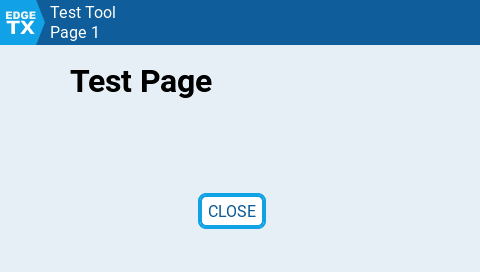
When run this produces the page shown below.
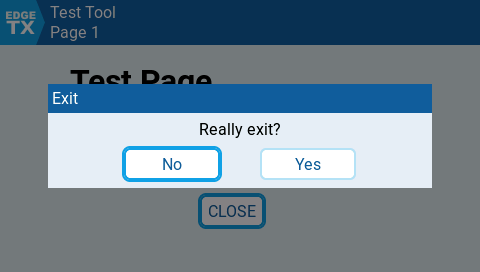
The user can exit the script by tapping the 'CLOSE' button or tapping the 'EdgeTX' button in the top-left corner. In both cases a popup dialog will be shown - if the user selects 'Yes' the script will close.
Widget script
LVGL version of the 'Counter' script.
lvgl.font
Display a button showing a font name. When tapped a popup menu is opened to choose a font from. Uses EdgeTX styling.
Syntax
lvgl.font([parent], {settings})
parent:font({settings})
Parameters
See the API page for parameter description and common settings.
Choice specific settings:
Name
Type
Description
Default if not set
Return values
LVGL object
Notes
The popup menu is closed when the user selects an item, and the 'set' function is called.
If the user taps outside the menu or the RTN key is pressed, the popup menu is closed and the 'set' function is not called.
API Status
Avail
Status
Comment
Change log
EdgeTX version
Change
lvgl.dialog
Display a dialog box.
Syntax
lvgl.dialog({settings})
Parameters
The lvgl.dialog function uses only the settings shown below. The common settings shown on the API page are not used.
Name
Type
Description
Default
Return values
LVGL object
API Status
Avail
Status
Comment
Change log
EdgeTX version
Change
lcd.drawBitmap
Displays prevoiusly loaded bitmap at (x,y) and optionally scales it.
Syntax
lcd.drawBitmap( bitmap, x, y [, scale] )
Parameters
Name
Req
Type
Description
Returns
none
Notes
Omitting scale draws image in 1:1 scale and is faster than specifying 100 for scale parameter.
Available on
API status
EdgeTX version
Action
Examples
Related topics
lcd.drawPixmap
Draws a bitmap file stored on the SD card at (x, y).
Syntax
lcd.drawPixmap( x, y, name )
Parameters
Name
Req
Type
Description
Returns
none
Notes
Maximum image size is [LCD_W / 2] x [LCD_H] pixels.
If you draw the same image repeatedly, prefer loading it once with and then drawing it with .
Available on
API status
EdgeTX version
Action
Examples
Related topics
Touch Event Constants
In addition to the key events described in the previous section, radios with a color touch screen also provide touch events to the widget scripts.
The following touch events are passed in the event argument to the widget script refresh function (when in full screen mode), just like the key events. The following touch events are provided:
Touch Event Name
Description
EVT_TOUCH_FIRST
When the finger touches down on the screen
In addition to the above touch events a touchState table is passed to refresh with the following addional data fields:
touchState fields
Description
Notes:
touchState is nil if event is not a touch event. This can be used to test if we have a touch event or a key event.
Since Lua evaluates a nil value to false and everything else to true
lcd.clear
Clears the LCD screen optionaly filling it with selected color
Syntax
lcd.clear( [color] )
Parameters
Name
Req
Type
Description
Returns
none
Notes
This function works only in stand-alone and telemetry & widget scripts. See .
Available on
API status
EdgeTX version
Action
Examples
Related topics
Logical Switch Function Constants
These constants are used with logical switch functions.
Constant name
Logical switch function
LS_FUNC_NONE
-
LS_FUNC_VEQUAL
a = x
LS_FUNC_VALMOSTEQUAL
For detailed function explanation see in EdgeTX manual.
lcd.RGB
Returns colorFlag in RGB565 format that can be used with lcd draw functions.
Syntax
lcd.RGB( r, g, b | rgb )
Parameters
Name
Req
Type
Description
or
Name
Req
Type
Description
Returns
color_flag. See
Notes
Available on
API status
EdgeTX version
Action
Examples
Related topics
Widget Options Constants
There are several option types that can be specified in the widget options table, which are exposed to the user via the Widget Settings menu.
Type
Description
COLOR
Displays a color picker, returns a color flag value
BOOL
Displays a toggle/checkbox, value toggles between 0 and 1
Maximum fiveoptions are allowed.
Note: from 2.11 ten options are allowed per widget.
Option variable name's length must be 10 characters or less and no spaces.
Example
lvgl.getContext
For a widget, returns the local instance table created (and returned from) the script 'create()' function.
Syntax
lvgl.getContext()
Parameters
The function has no parameters.
Return values
Widget scripts return a table of data local to the instance of the script from the script 'create()' function. This function retrieves this table for use in other functions.
Always returns nil for stand alone tool scripts.
API Status
Avail
Status
Comment
Change log
EdgeTX version
Change
lvgl.choice
Display a button showing an option value. When tapped a popup menu is opened with multiple options to choose from. Uses EdgeTX styling.
Syntax
lvgl.choice([parent], {settings})
parent:choice({settings})
Color Constants
On radios with color display, a color may be added to the flags described above.
There are two types of color constants: one that is an index into a table holding a palette of theme colors, and one that is just a color.
Indexed colors
These are the theme colors plus CUSTOM_COLOR, and they can be changed with the function lcd.setColor(color_index, color). Please note: if an indexed color is changed, then it changes everywhere that it is used. For the theme colors, this is not only in other widgets, but everywhere throughout the radio's user interface!
-- example
-- example
COLOR_THEME_PRIMARY1
COLOR_THEME_PRIMARY2
COLOR_THEME_PRIMARY3
COLOR_THEME_SECONDARY1
COLOR_THEME_SECONDARY2
COLOR_THEME_SECONDARY3
COLOR_THEME_FOCUS
COLOR_THEME_EDIT
COLOR_THEME_ACTIVE
COLOR_THEME_WARNING
COLOR_THEME_DISABLED
CUSTOM_COLOR
Literal colors
These color constants cannot be changed:
BLACK
WHITE
LIGHTWHITE
YELLOW
BLUE
DARKBLUE
GREY
DARKGREY
LIGHTGREY
RED
DARKRED
GREEN
DARKGREEN
LIGHTBROWN
DARKBROWN
BRIGHTGREEN
ORANGE
Deprecated color constants
These should no longer be used, but they are included for backwards compatibility. The old OpenTX API had a large number of indexed theme colors, and these have been mapped to the new theme colors as follows:
ALARM_COLOR -> COLOR_THEME_WARNING
BARGRAPH_BGCOLOR -> COLOR_THEME_SECONDARY3
BARGRAPH1_COLOR -> COLOR_THEME_SECONDARY1
BARGRAPH2_COLOR -> COLOR_THEME_SECONDARY2
CURVE_AXIS_COLOR -> COLOR_THEME_SECONDARY2
CURVE_COLOR -> COLOR_THEME_SECONDARY1
CURVE_CURSOR_COLOR -> COLOR_THEME_WARNING
HEADER_BGCOLOR -> COLOR_THEME_FOCUS
HEADER_COLOR -> COLOR_THEME_SECONDARY1
HEADER_CURRENT_BGCOLOR -> COLOR_THEME_FOCUS
HEADER_ICON_BGCOLOR -> COLOR_THEME_SECONDARY1
LINE_COLOR -> COLOR_THEME_PRIMARY3
MAINVIEW_GRAPHICS_COLOR -> COLOR_THEME_SECONDARY1
MAINVIEW_PANES_COLOR -> COLOR_THEME_PRIMARY2
MENU_TITLE_BGCOLOR -> COLOR_THEME_SECONDARY1
MENU_TITLE_COLOR -> COLOR_THEME_PRIMARY2
MENU_TITLE_DISABLE_COLOR -> COLOR_THEME_PRIMARY3
OVERLAY_COLOR -> COLOR_THEME_PRIMARY1
SCROLLBOX_COLOR -> COLOR_THEME_SECONDARY3
TEXT_BGCOLOR -> COLOR_THEME_SECONDARY3
TEXT_COLOR -> COLOR_THEME_SECONDARY1
TEXT_DISABLE_COLOR -> COLOR_THEME_DISABLED
TEXT_INVERTED_BGCOLOR -> COLOR_THEME_FOCUS
TEXT_INVERTED_COLOR -> COLOR_THEME_PRIMARY2
TITLE_BGCOLOR -> COLOR_THEME_SECONDARY1
TRIM_BGCOLOR -> COLOR_THEME_FOCUS
TRIM_SHADOW_COLOR -> COLOR_THEME_PRIMARY1
WARNING_COLOR -> COLOR_THEME_WARNING
active
Text to be displayed in the body of the dialog box
Empty string
confirm
Function
Called when the user taps the 'Yes' button.
nil
cancel
Function
Called when the user taps the 'No' button.
nil
active
active
active
Called when the user taps on an color button.
The function is passed a single parameter wihich is the selected color value.
nil
active
Only available for One-Time scripts and widgets running in full screen mode.
active
Called when the user taps on an alignment button.
The function is passed a single parameter wihich is the selected alignement value.
nil
active
Only available for One-Time scripts and widgets running in full screen mode.
integer
left coordinate
source
sourceName (string)sourceListID (integer)
can be a source identifier (number) or a source name (string). See getValue()
Text input option, limited to 8 characters in 2.10 or earlier, 12 characters in 2.11.
TIMER
Choice option, lets you pick from available timers
SOURCE
Choice option, lets you pick from available sources (i.e. sticks, switches, LS)
SWITCH
Choice option to select from available switches.
VALUE
Numerical input option, can specify default, min and max value
TEXT_SIZE
Choice option, lets you pick from the available text sizes (i.e. small, large)
ALIGNMENT
Choice option, lets you pick from available alignment options (i.e. left, center, right)
SLIDER
Select numerical value using a slider control (available in 2.11)
CHOICE
Select numerical value using a custom popup list (available in 2.11)
FILE
Select a file from SD card / internal storage (available in 2.11). Filename is limited to 12 characters maximum.
local y
_, y = lcd.drawTextLines(1, 0, 100, 40, "No TxGPS detected!", LEFT + TEXT_COLOR)
lcd.drawTextLines(1, y, 100, 100, "Make sure your firmware has GPS support enabled", LEFT + TEXT_COLOR)
local options = {
{ "Color", COLOR, COLOR_THEME_SECONDARY1 },
{ "Shadow", BOOL, 0 }
}
local function create(zone, options)
local wgt = { zone=zone, options=options, counter=0 }
return wgt
end
local function update(wgt, options)
wgt.options = options
lvgl.clear()
if wgt.options.Shadow ~= 0 then
lvgl.label({x=wgt.zone.x+1, y=wgt.zone.y+1, color=BLACK, font=DBLSIZE, text=(function() return wgt.counter end)})
end
lvgl.label({x=wgt.zone.x, y=wgt.zone.y, color=wgt.options.Color, font=DBLSIZE, text=(function() return wgt.counter end)})
end
local function background(wgt)
wgt.counter = wgt.counter + 1
end
function refresh(wgt)
wgt.counter = wgt.counter + 1
end
return { name="CounterLVGL", options=options, create=create, update=update, refresh=refresh, background=background, useLvgl=true }
-- drawing bitmap stored on sd card root folder with original size
local myLogo = Bitmap.open("/logo.png")
lcd.drawBitmap(myLogo,10,10)
-- drawing bitmap stored on sd card root folder doubling its size
local myLogo = Bitmap.open("/logo.png")
lcd.drawBitmap(myLogo,10,10,200)
-- clearing lcd with system default color
lcd.clear()
-- clearing lcd screen to dark red
local darkred = lcd.RGB(20,0,0) -- create color_flag for color
lcd.clear(darkred)
-- RGB numeric parameters
local darkred = lcd.RGB(20,0,0) -- create color_flag for color
lcd.drawText(0,0,"Very dark red text", darkred)
-- RGB hex parameter
local mygrey = lcd.RGB(0xAEAEAE) -- create color_flag for color
lcd.drawText(0,20,"My grey color", mygrey)
-- Create a table with default options
-- Options can be changed by the user from the Widget Settings menu
-- Notice that each line is a table inside { }
local options = {
{ "Source", SOURCE, 1 },
-- BOOL is actually not a boolean, but toggles between 0 and 1
{ "Boolean", BOOL, 1 },
{ "Value", VALUE, 1, 0, 10},
{ "Color", COLOR, ORANGE },
{ "Text", STRING, "Max8chrs" },
{ "File", FILE, "default", "PATH" }
}
left coordinate
name
string
full path to a bitmap on the SD card, e.g. "/IMAGES/test.bmp"
x
integer
top coordinate
y
2.0.0
Introduced
integer
Parameters
See the API page for parameter description and common settings.
Choice specific settings:
Name
Type
Description
Default if not set
title
String
Text to be displayed in the header of the popup menu.
Empty string
values
Table
Return values
LVGL object
Notes
The popup menu is closed when the user selects an item, and the 'set' function is called.
If the user taps outside the menu or the RTN key is pressed, the popup menu is closed and the 'set' function is not called.
API Status
Avail
Status
Comment
BW radios
Color radios
Change log
EdgeTX version
Change
2.11.0
Introduced
lvgl.arc
Display an arc.
Syntax
lvgl.arc([parent], {settings})
parent:arc({settings})
Parameters
See the API page for parameter description and common settings.
Note: 'w', 'h' and 'size' should not be used with lvgl.arc. Use 'radius' instead.
Arc specific settings:
Name
Type
Description
Default if not set
Notes:
Arcs object have two elements a foreground arc and a background arc. By default the background arc is not shown. To show the background arc set both the bgColor and bgOpacity properties.
If opacity or bgOpacity is less than 255 (fully opaque) and rounded is set to true, the ends of the arc will not draw correctly. This is an Lvgl limitation.
Example:
Return values
LVGL object
API Status
Avail
Status
Comment
Change log
EdgeTX version
Change
lvgl.file
Display a button showing a filename. When tapped a popup file picker is opened. Uses EdgeTX styling.
Syntax
lvgl.file([parent], {settings})
parent:file({settings})
Parameters
See the API page for parameter description and common settings.
Choice specific settings:
Name
Type
Description
Default if not set
Return values
LVGL object
Notes
The popup menu is closed when the user selects an item, and the 'set' function is called.
If the user taps outside the menu or the RTN key is pressed, the popup menu is closed and the 'set' function is not called.
API Status
Avail
Status
Comment
Change log
EdgeTX version
Change
lvgl.build
Build a complex UI in a single operation.
Syntax
lvgl.build([parent], {{settings}})
parent:build({{settings}})
Parameters
See the API page for parameter description and common settings.
Build specific settings:
Name
Type
Description
Default if not set
Return values
Table of named LVGL objects.
Notes
The 'settings' parameter to lvgl.build should be a table of tables. Each inner table creates a separate LVGL object based on the 'type' value.
For example the code below creates two object, a label and a rectangle.
Objects can be nested by using the 'children' setting, this should be another table of tables just like the build settings.
For example this code creates another label as a child of the rectangle object. The x & y co-ordinates for the second label are relative to the top left corner of the parent rectangle.
The lvgl.build function will return a table of LVGL objects. This table will contain named references to any objects created that have the 'name' setting, Only references to named objects are returned.
For example this code assigns a name to the inner label and then updates the color.
Warning
Very large nested tables or very deeply nested tables may not work when compiled to a .luac script. If your script works when run from the .lua file; but fails when run from .luac, try breaking the lvgl.build call into multiple calls with smaller tables.
API Status
Avail
Status
Comment
Change log
EdgeTX version
Change
Radios
Radios with B&W LCD screen
Manufacturer
Model
introduced in EdgeTX
RadioMaster
Radios with Grayscale LCD screen
Manufacturer
Model
introduced in EdgeTX
Radios with COLOR LCD screen
Manufacturer
Model
introduced in EdgeTX
Source List
EdgeTX internal Source List contains every source available on particular radio model.
Source List groups
sourceListName
Type
Description
Source List ID
Particular Source List ID is a integer number from 1 to whatever last source entry is used by EdgeTX developers during firmware implementation. Different Radios have different number of physical inputs that affects this list. Therefore for the same source type (ie LS04 - Logical switch number 4) sourceListID can have different value on particular radio model
To avoid confusion wherever there is reference to Source List ID short-name sourceListID is used.
Source List Name
Source List name can also change due to firmware changes during development or user configuration (ie. assigning custom name to input). In current version of EdgeTX firmware Source List Name also may contain special visual symbols to indicate type source (see ).
To avoid confusion wherever there is reference to Source List Name short-name sourceListName is used.
lvgl.box
Create a container for managing object layout.
Syntax
lvgl.box([parent], {settings})
parent:box({settings})
Parameters
See the API page for parameter description and common settings.
Box specific settings:
Name
Type
Description
Default if not set
Notes
The box object is a helper for managing screen layouts.
When adding controls such as button, toggle, textEdit etc, be sure to leave enough space for the focus outline around the control.
When used in a stand alone tool script, the box will automatically add scroll bars if any child objects are placed outside of the box boundaries. For widgets, child objects outside the box bounds will be clipped.
Return values
LVGL object
API Status
Avail
Status
Comment
Return values
LVGL object
Change log
EdgeTX version
Change
API
LVGL objects are created and manipulated using the 'lvgl' functions.
Most of these functions follow the syntax below. A few function have only the optional 'parent' parameter.
Parameter
Notes
Description
Units
Index
Unit
Defined as
Flags and Pattern Constants
Many of the lcd functions accept parameters named flags and patterns. The names and their meanings are described below.
lcd.drawText Flags
Name
Description
EdgeTX ver
Notes
Lcd Functions Overview
Description
Lcd functions allow scripts to interact with the transmitter display. This access is limited to the 'run' functions of One-Time and Telemetry scripts. Widget scripts on the Horus (X10 and X12S) can make use of the lcd functions as well.
Notes:
The run function is periodically called when the screen is visible. In OpenTX 2.0 each invocation starts with a blank screen (unless lcd.lock() is used). Under OpenTX 2.1 screen state is always persisted across calls to the run function. Many scripts originally written for OpenTX 2.0 require a call to lcd.clear() at the beginning of their run function in order to display properly under 2.1 and 2.2.
Many of the lcd functions accept parameters named flags and patterns. The names and their meanings are described below.
lvgl.button
Add a text button using the EdgeTX style.
Syntax
lvgl.button[parent], {settings})
parent:button({settings})
-- draw bitmap file stored on the SD card
lcd.drawPixmap(10, 10, "/IMAGES/test.bmp")
-- draw at the top-left corner
lcd.drawPixmap(0, 0, "/IMAGES/test.bmp")
Must contain a simple table of strings. Each string defines an options shown in the popup menu.
The values table can be changed using the 'lvgl.set' function (in 2.11.6 or later).
Empty list
get
Function
Called to get the index of the currently selected option, when the popup menu is first opened.
Must return a number between 1 and the number of values.
nil
set
Function
Called when the user taps on a menu item.
The function is passed a single parameter wihich is the index of the selected item (1 .. number of values)
nil
active
Function
Set the enabled / disabled state. Return value must be a boolean - true to enable the control, false to disable.
nil
filter
Function
Allows the popup menu list to be filtered when the user opens the popup.
This function is called for each option in the values table. The index of the option is passed as a parameter to the function.
If the function returns true the option is shown in the popup, false will hide the option.
nil
popupWidth
Number
Set the width of the popup window.
0 (use default width)
active
Only available for One-Time scripts and widgets running in full screen mode.
Called when the user taps on a file name.
The function is passed the file name selected (does not include file path).
nil
active
Function
Set the enabled / disabled state. Return value must be a boolean - true to enable the control, false to disable.
nil
folder
String
Folder on SD card to browse for files,
nil
extension
String
Filter for extension matching.
Concatenate desired extensions into a single string.
E.G. ".png" will match only PNG image files. ".png.bmp" will match both PNG and BMP images.
nil
hideExtension
Boolean
Hide the file extension in the picker list.
If true the file extension is not included in when the 'set' function is called.
false
maxLen
Number
Limits the maximum file name length. If set, files with longer names are not shown in the picker list.
255
Only available for One-Time scripts and widgets running in full screen mode.
title
String
Text to be displayed in the header of the popup menu.
Empty string
get
Function
BW radios
Color radios
2.11.0
Introduced
Called to get the name of the currently selected file, when the popup menu is first opened.
Must return a string.
active
TX16S / TX16S MAX / TX16S Mark II
2.4
Jumper
T16 / T16 Plus / T16 Pro Hall
2.4
Jumper
T18 / T18 Lite / T18 Pro
2.4
Eachine
TX16S
2.4
FrSky
X10 / X10S / X10S Express / X10S Express
2.4
FrSky
X12S / X12S IRSM
2.4
TX12
2.4
RadioMaster
T8 Pro
2.4
RadioMaster
Zorro
2.6
RadioMaster
TX12 Mark II
2.8
RadioMaster
Boxer
2.8.1
RadioMaster
MT12
2.10
RadioMaster
Pocket
2.10
Jumper
T-Lite / T-Lite v2
2.4
Jumper
T-12 / T12 Pro / T12 Pro Hall
2.4
Jumper
T-Pro
2.6
Jumper
T-14
2.10
Jumper
T-20
2.10
FrSky
QX7 / QX7S / QX7 ACCESS / QX7S ACCESS
2.4
FrSky
X9 Lite / X9 Lite S
2.4
FrSky
X9E / X9E Hall
2.4
FrSky
X-Lite / X-Lite S / X-Lite Pro
2.4
iFlight
Commando8
2.8
Betaflight
LireRadio3
2.8
FrSky
X9D / X9D+ / X9D SE
2.4
FrSky
X9D+2019 / X9D+2019 SE
2.4
Flysky
NV14
2.5
Flysky
EL18
2.8
RadioMaster
PAD_OUTLINE
scrollBar
Boolean
Enables or disables scroll bars. Set to false to disable scroll bars.
true
scrollDir
Scroll type - lvgl.SCROLL_xx
Sets the allowed scrolling directions if child objects extend beyond the box boundaries.
Only valid for stand alone scripts.
lvgl.SCROLL_ALL
scrolled
Function
Called when the box content is scrolled. Passed two parameters 'x', and 'y' which are the current scroll position of the box window.
nil
scrollTo
Function
Function to override the box scroll position. Must return two values, 'x' and 'y' which are the position to scroll the box window to.
nil
align
(Added in 2.11.4)
Alignment type:
- LEFT, RIGHT, CENTER, VTOP, VBOTTOM. VCENTER
Sets the alignment when using flex layouts.
NOTE: If the box content is larger than the box size (requiring a scroll bar), then do not use the alignment options in the same direction as the scroll. If the flex layout is FLOW_COLUMN and the box has a vertical scroll bar then VCENTER and VBOTTOM alignment will not work. If the flex layout is FLOW_ROW and the box has a horizontal scroll bar then CENTER and RIGHT alignment will not work.
CENTER | VTOP
borderPad
(Added in 2.11.5)
Number or Table
Controls the border padding around the edges of the container.
Can be a number which sets uniform padding on all side. Or a table to set each side separately - e.g. {left=?, right=?, top=?, bottom=?}
PAD_OUTLINE If flexFlow is set, otherwise 0.
flexFlow
Flow type - lvgl.FLOW_COLUMN or lvgl.FLOW_ROW
Enable flex layout for this box.
not used
flexPad
Number
BW radios
Color radios
2.11.0
Introduced
When flex layout is used, set the padding between rows or columns.
Recommended to use the lvgl.PAD_xxx values.
active
2
Amps
UNIT_AMPS
3
Milliamps
UNIT_MILLIAMPS
4
Knots
UNIT_KTS
5
Meters per Second
UNIT_METERS_PER_SECOND
6
Feet per Second
UNIT_FEET_PER_SECOND
7
Kilometers per Hour
UNIT_KMH
8
Miles per Hour
UNIT_MPH
9
Meters
UNIT_METERS
10
Feet
UNIT_FEET
11
Degrees Celsius
UNIT_CELSIUS
12
Degrees Fahrenheit
UNIT_FAHRENHEIT
13
Percent
UNIT_PERCENT
14
Milliamp Hour
UNIT_MAH
15
Watts
UNIT_WATTS
16
Milliwatts
UNIT_MILLIWATTS
17
dB
UNIT_DB
18
RPM
UNIT_RPMS
19
G
UNIT_G
20
Degrees
UNIT_DEGREE
21
Radians
UNIT_RADIANS
22
Milliliters
UNIT_MILLILITERS
23
Fluid Ounces
UNIT_FLOZ
24
Ml per minute
UNIT_MILLILITERS_PER_MINUTE
35
Hours
UNIT_HOURS
36
Minutes
UNIT_MINUTES
37
Seconds
UNIT_SECONDS
38
Virtual unit
UNIT_CELLS
39
Virtual unit
UNIT_DATETIME
40
Virtual unit
UNIT_GPS
41
Virtual unit
UNIT_BITFIELD
42
Virtual unit
UNIT_TEXT
0
Raw unit (no unit)
UNIT_RAW
1
Volts
UNIT_VOLTS
0
startAngle
Number or Function
Sets the starting angle or the arc. Measured in degrees - 0 - 360.
0 is to the right (3 o'clock).
0
endAngle
Number or Function
Sets the ending angle for the arc.
360
opacity
Number or Function
Sets the opacity.
Note: range is 0 (transparent) to 255 (opaque).
255 (opaque)
rounded
Boolean
If true makes the ends of the arc round.
false
bgColor
Color or Function
Sets the color of the background arc.
not used
bgOpacity
Number or Function
Sets the opacity of the background arc.
0 (not visible)
bgStartAngle
Number or Function
Sets the starting angle or the background arc. Measured in degrees - 0 - 360.
0 is to the right (3 o'clock).
0
bgEndAngle
Number or Function
Sets the ending angle for the arc.
360
thickness
Number
Sets the width of the line used to draw the arc.
1
radius
Number or Function
BW radios
Color radios
2.11.0
Introduced
Sets the radius of the arc
active
Empty string
children
Table
nil
type
String or type constant
Mandatory on each table entry to determine what type of LVGL object to create.
e.g.
type="rectangle"
type=lvgl.RECTANGLE
Contains all of the settings required to create the LVGL object.
Most of the functions return an LVGL object that can be used to update the UI or in other API calls.
API functions can also be called using Lua OO syntax.
For example the following two lines are equivalent.
There are a number of settings that are common to all of the LVGL functions that take a 'settings' table parameter.
Name
Type
Description
Default if not set
x
Number
Horizontal position of the object relative to the top left corner of the parent object.
0
y
Number
The functions associated with settings are called periodically by the firmware. Where a setting is defined using a function, the UI will automatically update whenever the function returns a different value.
A note on object width and height
Although width and height, and the size function, can be defined for all objects they may not be used in some cases. For example when creating a circle or arc object the radius property should be used instead.
Dynamically managing object size and position for different screens
EdgeTx supports both landscape and portrait orientation displays in a variety of resolutions (480x272, 480x320, 320x480, 320x240, 800x480, etc). Managing all these in a Lua script dynamically can be challenging.
To assist with this there are a number of things that can be used:
Flex layouts can be used; but care should be taken as they are noticeably slower than using absolution position and size.
When using the 'page' object the lvgl.PAGE_BODY_HEIGHT contant will give the size of the page body (minus the header). This can be used to manage the layout for the page content.
The lvgl.UI_ELEMENT_HEIGHT constant defines the default height for buttons, toggles, sliders etc.
The lvgl.LCD_SCALE constant can be used to scale values for the current LCD size, when compared to the default 480x272 size. For example if a button needs to be 80 pixels wide on a 480x272 display then setting the width to 80 * lvgl.LCD_SCALE will ensure the size is adusted for the actual LCD size.
The lvgl.PERCENT_SIZE value can be used to set the size and position of an object as a percentage of the parent size. For example setting width to lvgl.PERCENT_SIZE+80 will size the object to 80% of the parent width. Setting x = lvgl.PERCENT_SIZE+50 will set the X position to ½ of the parent width.
NOTE: this requires that the parent container has a defined size. If the parent size is the default auto size base on content then percentage sizing will fail. This results in a catch-22 where the parent need the child size; but the child first needs the parent size.
NOTE: PERCENT_SIZE does not work for all objects. For example, images require a fixed width and height.
parent
Optional (with some exceptions)
If present must be an LVGL object
Parent object. If set then whatever LVGL objects are created by the function are set as children of 'parent'. If not set then objects are created in the top level script window.
0
normal font, default precision for numeric
2.3
XXLSIZE
jumbo font
2.3
DBLSIZE
double size font
2.3
MIDSIZE
mid sized font
2.3
SMLSIZE
small font
2.3
BOLD
bold font
2.3
Only color displays. This is a font size on its own - cannot be combined with other font size flags.
SHADOWED
shadow font
2.3
Only color displays
INVERS
inverted display
2.3
BLINK
blinking text
2.3
LEFT
left justify
2.3
Default for most functions not related to bitmaps
RIGHT
right justify
2.3
CENTER
center justify
2.3
Only color displays
VCENTER
center vertically
2.5.0
Only color displays
VTOP
align to top
2.11.4
Only for color displays using the LVGL API.
VBOTTOM
align to bottom
2.11.4
Only for color displays using hte LVGL API.
PREC1
single decimal place
2.3
display with one decimal place (number 386 is displayed as 38.6)
PREC2
two decimal places
2.3
display with one decimal place (number 386 is displayed as 3.86)
GREY_DEFAULT
grey fill
2.3
TIMEHOUR
display hours
2.3
Only for lcd/drawTimer
lcd drawing functions flags on B&W LCD radios
Name
Description
EdgeTX ver
Notes
FORCE
pixels will be black
2.3
ERASE
pixels will be white
lcd.drawLine function patterns
Name
Description
EdgeTX ver
Notes
SOLID
lines will appear soild
2.3
DOTTED
lines will appear dotted
Flags Constants
Name
Description
Version
Notes
0
normal font, default precision for numeric
DBLSIZE
double size font
Patterns Constants
Name
Description
FORCE
pixels will be black
ERASE
pixels will be white
DOTTED
lines will appear dotted
Screen Constants
Name
Description
LCD_W
width in pixels
LCD_H
height in pixels
Screen Information
Radio
LCD_W
LCD_H
Colours
X7
128
64
1 bit
X9D
212
Parameters
See the API page for parameter description and common settings.
Button specific settings:
Name
Type
Description
Default if not set
text
String or Function
Text to be displayed in the button.
Empty string
press
Function
Return values
LVGL object
API Status
Avail
Status
Comment
BW radios
Color radios
Change log
EdgeTX version
Change
2.11.0
Introduced
lvgl.function([parent], {settings})
lvgl.show(parent)
parent:show()
Vertical position of the object relative to the top left corner of the parent object.
0
w
Number
Width of the object
Auto size to fit content
h
Number
Height of the object
Auto size to fit content
color
Color or Function
Primary color for the object.
COLOR_THEME_SECONDARY1
pos
Function
Position of the object relative to the top left corner of the parent object.
Must return two values - x, y.
nil
size
Function
Size of the object. Must return two values - width, height.
nil
visible
Function
Controls visibility of the object. Must return a boolean - true if the object is shown, false to hide it.
nil
floating
Added in 2.11.6
Boolean
If set to true then the associated object will remain fixed in place on the screen if it is within a scrollable container regardless of how the container is scrolled.
Caveats:
- has no effect if the object container is not scrollable
- may not work as expected in flex containers
- nested containers with more than one container having floating set to true may not work as expected
false
2.3
2.3
MIDSIZE
mid sized font
SMLSIZE
small font
INVERS
inverted display
BLINK
blinking text
XXLSIZE
jumbo font
2.0.6
LEFT
left justify
2.0.6
Default for most functions not related to bitmaps
RIGHT
right justify
PREC1
single decimal place
PREC2
two decimal places
GREY_DEFAULT
grey fill
TIMEHOUR
dislay hours
Only for drawTimer
64
4 bit
X9D+
212
64
4 bit
X9E
212
64
4 bit
X10
480
272
RGB565
X12S
480
272
RGB565
Called when the user taps on the button, after the user releases ENTER key or stops touching the screen.
Note: the 'press' function may optionally return a integer value. If the return value if non-zero then the button will be displayed in the 'checked' state.
nil
longpress
Function
Called when the user long taps on the button.
Note: the 'longpress' function may optionally return a integer value. If the return value if non-zero then the button will be displayed in the 'checked' state.
nil
active
Function
Set the enabled / disabled state. Return value must be a boolean - true to enable the control, false to disable.
nil
checked
Boolean
Sets the initial 'checked' state for the button. If true the button will display in the checked state. Can be updated with the set() function.
false
color
Color or Function
Sets the background color for the button.
EdgeTx button style color - PRIMARY2 theme color.
textColor
Color or Function
Sets the text color for the button label.
EdgeTx button style color - SECONDARY1 theme color.
cornerRadius
Number
Sets the radius for the corners of the button.
EdgeTx button style radius.
font
Font value or Function
Sets the font size.
E.G.:
- MIDSIZE
- DBLSIZE
STDSIZE
active
Only available for One-Time scripts and widgets running in full screen mode.
Constants
Constants defined for use in LVGL layouts.
Name
Description
lvgl.FLOW_ROW
Sets flex layout flow.
lvgl.FLOW_COLUMN
Set flex layout flow.
lvgl.PAD_TINY
Constants for the 'filter' property of the lvgl.source control. Can be used to limit which sources the user can select.
Name
Description
Constants for the 'filter' property of the lvgl.witch control. Can be used to limit which sources the user can select.
Name
Description
Constants to control scrolling of containers such as box and rectangle
Name
Description
Constants for managing page layout (see the API section for more details). Added in 2.11.4.
Name
Description
Object creation constants (when using the 'build' function). Added in 2.11.4.
As an alternative to sepcifying the type for an object by name the following contants may be used.
Name
Equivalent to:
lvgl.SRC_SWITCH
Switches
lvgl.SRC_CHANNEL
Outputs
lvgl.SRC_TRIM
Trims
lvgl.SRC_LOGICAL_SWITCH
Logical switches
lvgl.SRC_GVAR
Global variables
lvgl.SRC_LUA
Custom Lua mix script outputs
lvgl.SRC_OTHER
MIN, MAX, tx battery, timers etc.
lvgl.SRC_HELI
Heli channels
lvgl.SRC_TRAINER
Trainer channels
lvgl.SRC_TELEM
Telemetry sensors
lvgl.SRC_CLEAR
Special value to control the 'Clear' button in the source chooser.
lvgl.SRC_INVERT
Special value to control the 'Invert' button in the source chooser.
lvgl.SW_FLIGHT_MODE
Flight modes
lvgl.SW_TELEM
Telemetry sensors
lvgl.SW_OTHER
ON, ONE, trainer connected, radio activity, etc
lvgl.SW_CLEAR
Special value to control the 'Clear' button in the switch chooser.
lvgl.HLINE
"hline"
lvgl.VLINE
"vline"
lvgl.LINE
"line"
lvgl.TRIANGLE
"triangle"
lvgl.IMAGE
"image"
lvgl.QRCODE
"qrcode"
lvgl.BOX
"box"
lvgl.BUTTON
"button"
lvgl.MOMENTARY_BUTTON
"momentaryButton"
lvgl.TOGGLE
"toggle"
lvgl.TEXT_EDIT
"textEdit"
lvgl.NUMBER_EDIT
"numbeEdit"
lvgl.CHOICE
"choice"
lvgl.SLIDER
"slider"
lvgl.VERTICAL_SLIDER
"verticalSlider"
lvgl.PAGE
"page"
lvgl.FONT
"font"
lvgl.ALIGN
"align"
lvgl.COLOR
"color"
lvgl.TIMER
"timer"
lvgl.SWITCH
"switch"
lvgl.SOURCE
"source"
lvgl.FILE
"file"
lvgl.SETTING
"setting"
2 pixel padding.
lvgl.PAD_SMALL
4 pixel padding.
lvgl.PAD_MEDIUM
6 pixel padding.
lvgl.PAD_LARGE
8 pixel padding.
lvgl.PAD_OUTLINE
Padding required around controls for focus outline.
lvgl.PAD_BORDER
Padding size of the default border around controls.
lvgl.SRC_ALL
Allow all source types, enable the 'Clear' button and the 'Invert' button.
lvgl.SRC_INPUT
Inputs
lvgl.SRC_STICK
Analog sticks
lvgl.SRC_POT
lvgl.SW_ALL
Allow all switch types, enable the 'Clear' button.
lvgl.SW_SWITCH
Switches
lvgl.SW_TRIM
Trims
lvgl.SW_LOGICAL_SWITCH
lvgl.SCROLL_OFF
No scrolling allowed. Objects outside the containers boundary will be clipped
lvgl.SCROLL_HOR
Horizontal scrolling only
lvgl.SCROLL_VER
Vertical scrolling only
lvgl.SCROLL_ALL
lvgl.PAGE_BODY_HEIGHT
Height of the body section for a 'page' object.
lvgl.UI_ELEMENT_HEIGHT
Default height for controls (buttons, toggle, etc)
lvgl.LCD_SCALE
Scale factor for the LCD display compared to the standard 480x272 size display.
Standard displays with LCD sizes 480x272, 480x320 and 320x480 have a scaling factor of 1.0.
Radios with a 320x240 LCD have a scaling factor of 0.8.
Radios with a 800x480 LCD have a scaling factor of 1.375.
lvgl.PERCENT_SIZE
lvgl.LABEL
"label"
lvgl.RECTANGLE
"rectangle"
lvgl.CIRCLE
"circle"
lvgl.ARC
Pots and sliders
Logical switches
Both horizontal and vertical scrolling allowed
Used to create percentage based position and size values for objects., based on the size of the parent container.
To use a percentage size set the desired property to lvgl.PERCENT_SIZE + N, where N is the percentage value from 1 to 100. E.G. w=lvgl.PERCENT_SIZE + 50.